


Back to articles
Articles


The features described in this article have been deprecated.
Click here to visit to the new learn home.
Sharing and Connecting Calendars to DocketCalendar
Introduction
DocketCalendar connects to a single email in your Outlook domain, called the "linked email account." This account is used to log into DocketCalendar and can place events on any calendar inside your domain that has granted it edit privileges. This guide will help you understand how to properly share and connect calendars to DocketCalendar.
Types of Email Accounts
- Linked Email Account: The email account used to log into DocketCalendar (e.g., docketcal@yourlawfirm.com).
- User Calendars: Individual calendars of firm members (e.g., john@yourlawfirm.com).
- Firm Calendar: A central shared calendar for the entire firm (optional).
Important Note
When setting up DocketCalendar, you must share each user's personal calendar with the linked email account, not the other way around. This is crucial for proper functionality.
Sharing all users to linked email account NOT sharing linked email to all users.
Step-by-Step Guide to Sharing Calendars
- Share User Calendar to Linked Account
- Each user must share their calendar with edit privileges to the linked email account.
- Example: John (john@yourlawfirm.com) shares his calendar with docketcal@yourlawfirm.com.
- Accept Sharing Invitation
- Log into the linked email account.
- Accept the invitation to edit the user's calendar from the inbox.
- Verify Sharing in DocketCalendar
- After accepting the invitation, the user's calendar should appear in the dropdown menu as an assignable calendar in DocketCalendar.
- Assign Calendar in DocketCalendar
- In DocketCalendar, assign the newly shared user calendar.
- Start Adding Events
- You can now add new or existing events from DocketCalendar to the user's calendar.
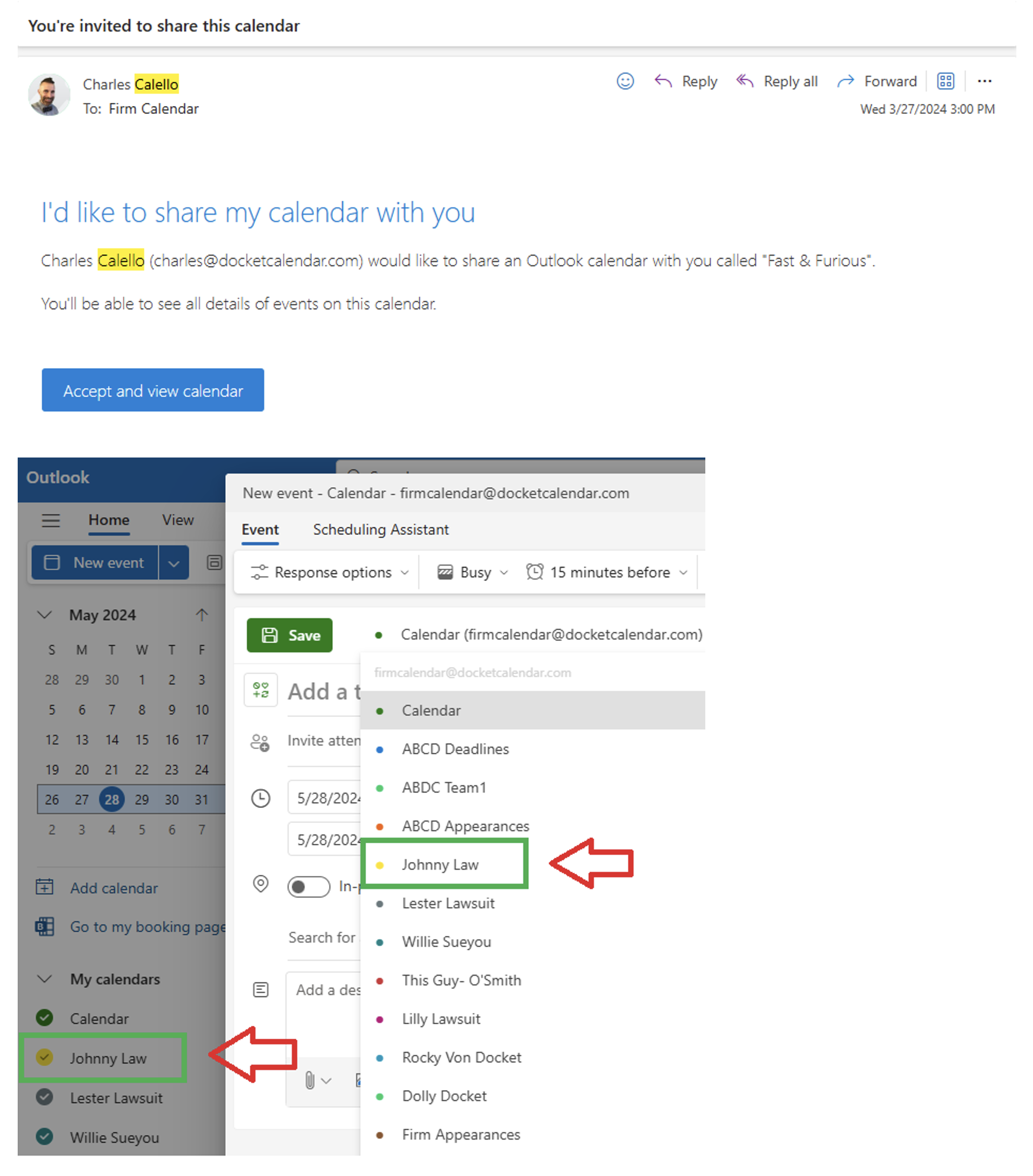
Testing Calendar Sharing
To ensure the calendar is shared correctly:
- Open the linked email account in Outlook.
- Create a new event.
- Check the calendar dropdown next to the "Save" button.

If the user's calendar appears in the dropdown, the sharing is set up correctly:
Common Misconceptions
- Firm Calendar: The linked email account's calendar is not necessarily your "Firm Calendar." You may continue using your existing central shared calendar.
- Sharing Direction: Remember to share user calendars TO the linked account, not FROM the linked account TO users.
Troubleshooting
If a user's calendar doesn't appear in the dropdown when creating a new event from the linked account:
- Double-check that the user has shared their calendar with the correct email address.
- Ensure that edit permissions were granted when sharing.
- Try removing and re-adding the calendar sharing permissions.
Conclusion
By following this guide, you should be able to correctly set up calendar sharing for DocketCalendar in your firm. Remember, the key is to share individual user calendars with the linked email account, allowing DocketCalendar to populate events across all connected calendars efficiently.
